
With Dual Amp Loader you can turn any VST3 amp – or a blend of two amps – into a Neural Amp Modeler profile (.nam). No cables, no command line. Here is how in three steps.
Preparation: tidy up the plugin
A NAM profile learns how your sound reacts to a test signal. Anything that changes over time gets in the way. Before you render:
- Switch off delay, reverb, chorus and doubler in the plugin
- Switch off the plugin’s noise gate – otherwise the model learns the gate and quiet decays get chopped. Dual Amp’s own gate is bypassed automatically during capture.
- Turn off compressor pedals in front of the amp for your first attempt as well
- The cabinet may stay on if you want it in the profile
Step 1: choose the test signal
NAM uses a fixed test signal, the file input.wav from the Neural Amp Modeler project. Select it once in the NAM REAMP tab; Dual Amp Loader remembers it. The test signal must be 48 kHz.
Step 2: render in the SLOT → NAM tab
- Choose the source: Slot A, Slot B or A + B (mix). For the mix you can decide whether the impulse responses are included (“full rig”).
- Enter a name and click Render.
- A few seconds later the recording is saved as
…_output.wavinDocuments\DualAmpLoader\Captures.
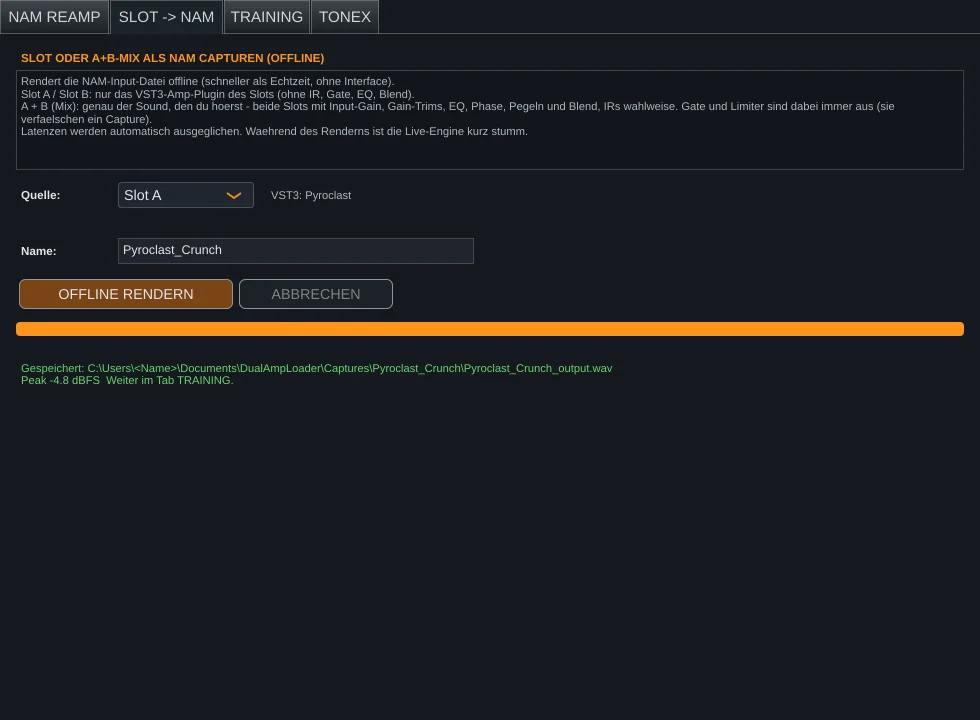
Rendering runs offline and faster than real time. Dual Amp Loader switches the plugin to offline mode, lets it settle for two seconds and compensates its latency sample-accurately.
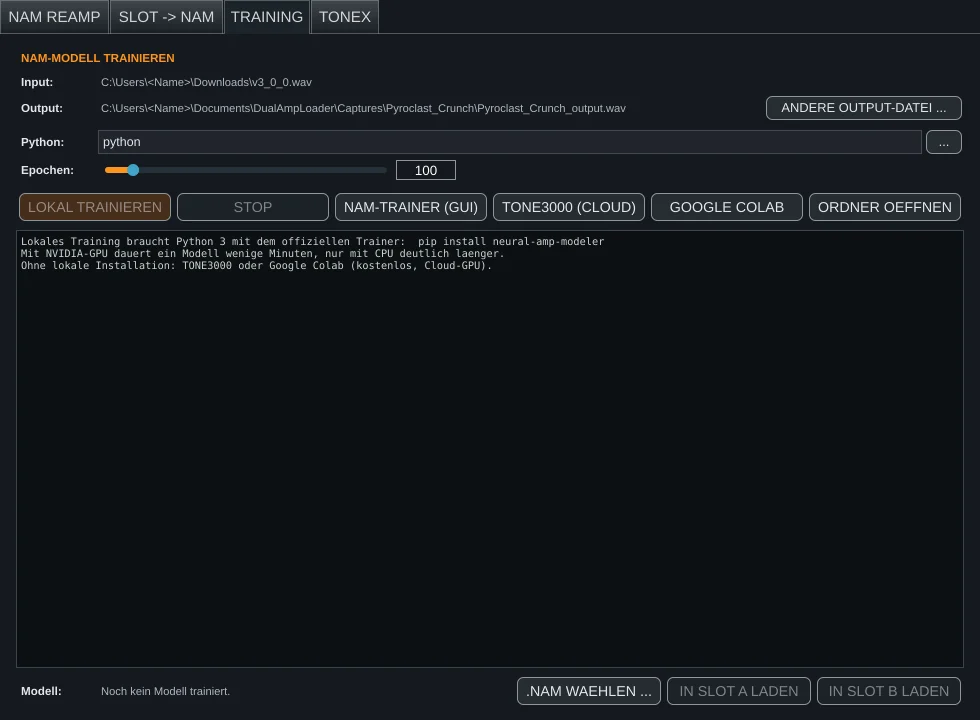
Step 3: train in the TRAINING tab
Input and output are already filled in. The first time, click TRAINING EINRICHTEN and choose whether to train with an NVIDIA graphics card (GPU) or the processor (CPU) only. The setup downloads a few gigabytes once; after that it is done.
- Set the epochs: 100 is a good default, 20–30 are enough for a quick listening test.
- Click start training. A progress bar shows the epoch, ESR and estimated remaining time.
- When it is done, the finished
.namfile sits next to your recording. Load it into a slot and compare it with the original.
How long does it take?
With an NVIDIA graphics card about 5 to 15 minutes. On the processor alone, 100 epochs take one to three hours depending on the CPU. The progress bar estimates the remaining time after the first few seconds.
If the trainer stops
“Failed checks” / replicate ESR too high
The trainer compares two identical sections at the start and end of the test signal. If they sound different, a time-based effect (delay, reverb, doubler) or a gate is usually active in the plugin. Switch it off, render again, train again. A value around 0.003 is very good.
“No latency provided and cannot automatically analyze the latency”
Happens with older versions when a gate swallows the short clicks in the test signal. Since Dual Amp Loader 0.22.6 the latency of offline renders is passed on automatically.
The setup fails
“Try again” is safe: completed steps are skipped and large downloads are not repeated. Check whether a firewall blocks python.org, pypi.org or download.pytorch.org.